

The Jing Consult Portal at jingconsult.org is a live, working demonstration of the private, source-grounded AI knowledge tools that Jing Consult builds for its clients. This document is a site-map-level walkthrough of the whole portal — what every area is for and the real controls you will find there. It mirrors the portal’s own built-in guided tour, so you can read it here or take the tour inside the product. Every screenshot below can be clicked to enlarge.
Updated 22 August 2026 — this walkthrough now covers Book Studio, the portal’s writing-and-publishing studio, and the native mobile apps, now live on the App Store and Google Play.
📑 Contents
- 1. What the portal is
- 2. Getting in & finding your way
- 3. The Library
- 4. Book Studio
- 5. The App Builder
- 6. CV Builder
- 7. Files, Trash, Settings & Invoices
- 8. The Portal in your pocket — the mobile apps
- 9. Privacy & the data model
- 10. Getting demo access
1 · What the portal is
The portal is built around one idea: the knowledge you collect should end up working for you. A document you upload becomes a private, searchable knowledge graph; that graph powers grounded answers, quizzes and maps; and — for technical books — it can be forged into a skill that an app you build can use. No coding is required at any step.
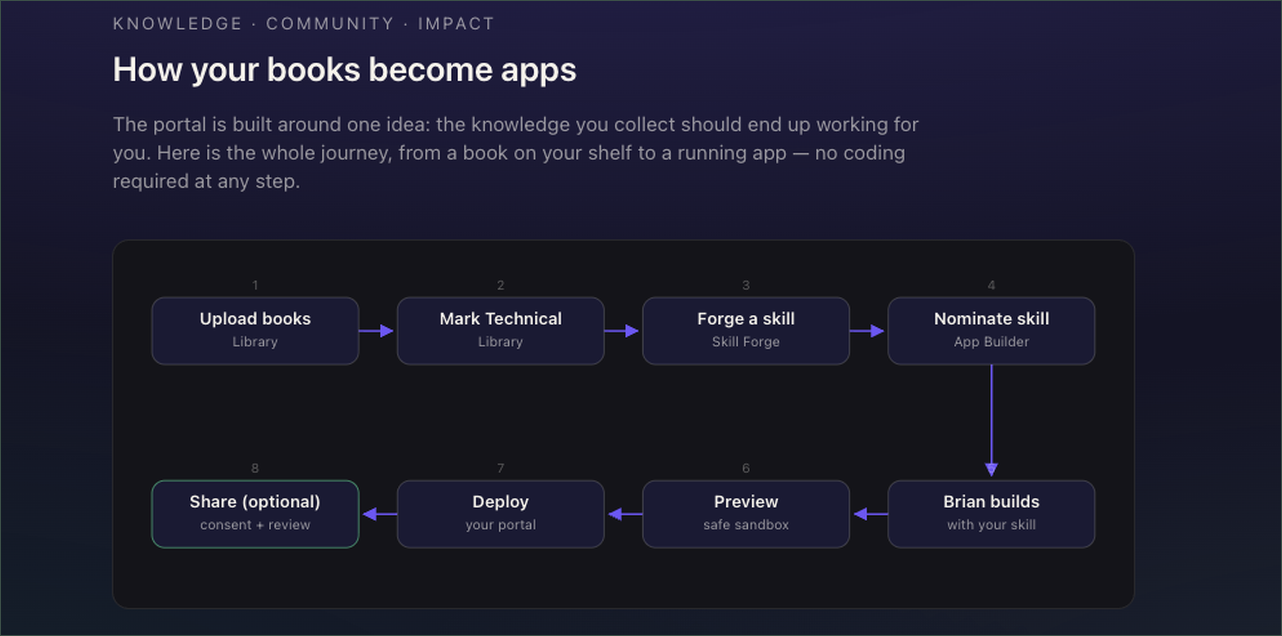
Six pillars organise the experience: your Library (read and understand), the Knowledge Map (see how ideas connect), Book Studio (write and publish), the App Builder (turn knowledge into tools), CV Builder (a worked example app), and the Files layer that everything is built on. Together they close the loop the portal is built around — read → note → compose → publish → share: what you read becomes notes, notes become a book, and the book goes back on your shelf, or the community’s.
2 · Getting in & finding your way
Signing in
The portal lives at jingconsult.org. Members sign in from the landing page or at /portal/login; every portal page is protected and sends visitors to sign in first. Demo access is available on request (see the last section).
The guided tour
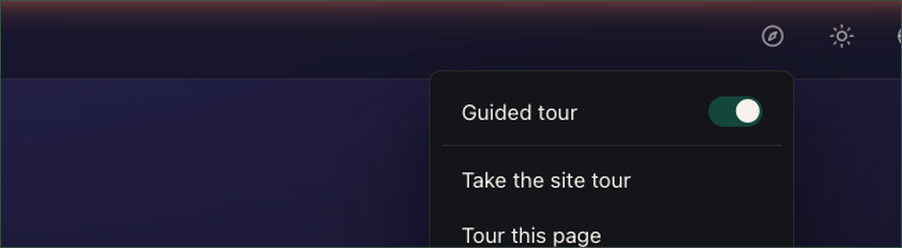
A compass icon sits in the header, just left of the theme toggle. It opens a small menu with a master on/off switch, Take the site tour, and Tour this page. On a first visit a spotlight points it out, with a “don’t show again” option. Every authenticated page has its own control-level tour that walks that page’s real buttons, and the tour follows your theme and language and is fully keyboard- and screen-reader-operable.
Theme, language & your account
Switch between light and dark themes and read the portal in English, Español, 简体中文 or 日本語 — the whole interface, and the tour, switch instantly. The account menu (top right) jumps to Files, Trash or Settings, or signs you out.
The shell
A breadcrumb always shows where you are. The menu button opens the navigation drawer: your main apps — Library, Book Studio and App Builder — with any community apps and skills shared with you listed below. Files, Trash and Settings sit in the drawer’s lower strip; your files are the backbone everything else is built on.
3 · The Library
The Library (Beacon e-library) is where you read and understand. Upload PDFs and EPUBs — or drag them onto the shelf — and each is converted and indexed into its own knowledge graph in the background. The dashboard shows your book count, extracted graph nodes and text chunks, and how much capacity you have used; you can search and sort your shelf and switch between a cover grid and a compact list.
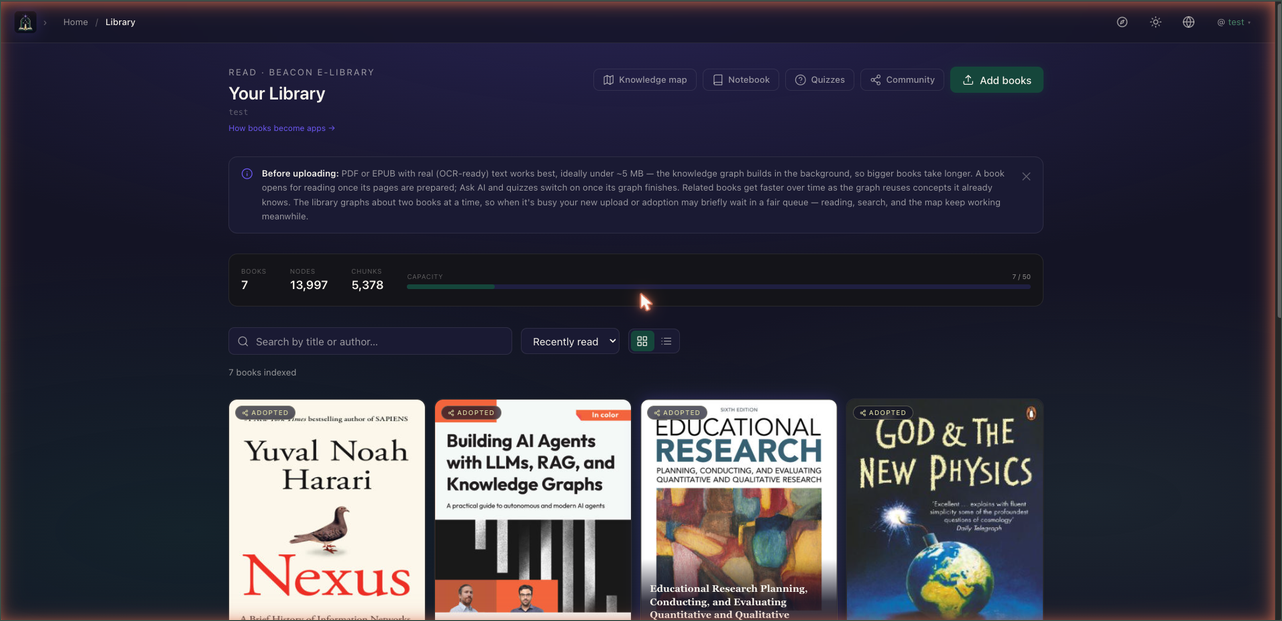
Every book card carries its own controls: Read it, open its Notebook of highlights and notes, take a Quiz, Share it to the community, and — for technical books (you own and uploaded) — Forge a skill from it.
The Reader
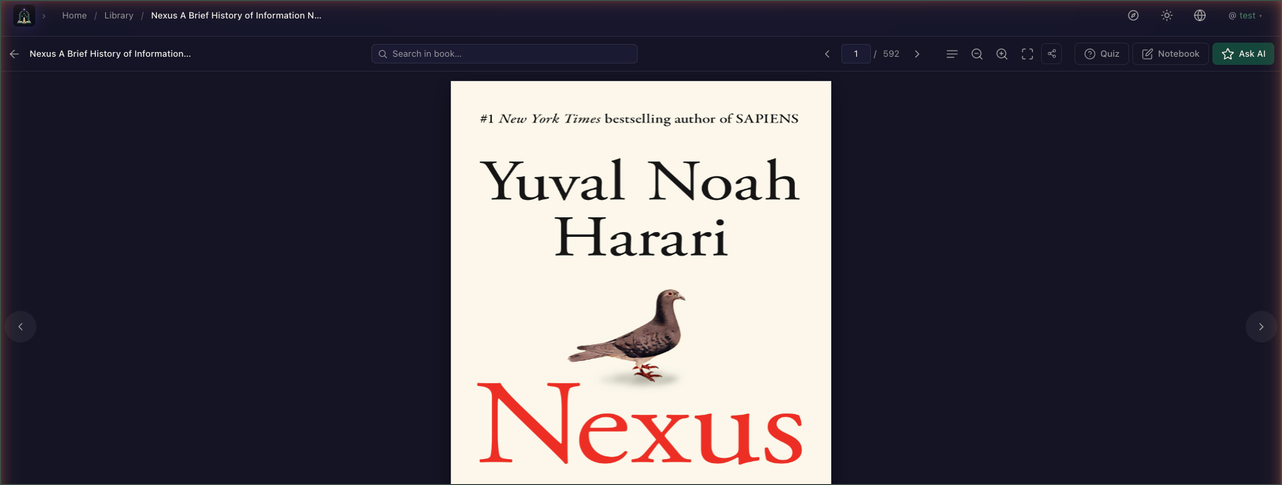
Open a book to read it with an AI companion beside you. The toolbar turns pages, jumps to a page, searches inside the book, zooms, goes fullscreen and opens a quiz; the contents panel can be auto-generated when a book has none. Ask the companion questions grounded in the text and choose the scope — this book, your whole library, the wider Body of Knowledge, or the web — then follow the cited sources. Select any text, or right-click, to ask about it, look it up, or save a highlight.
The Knowledge Map
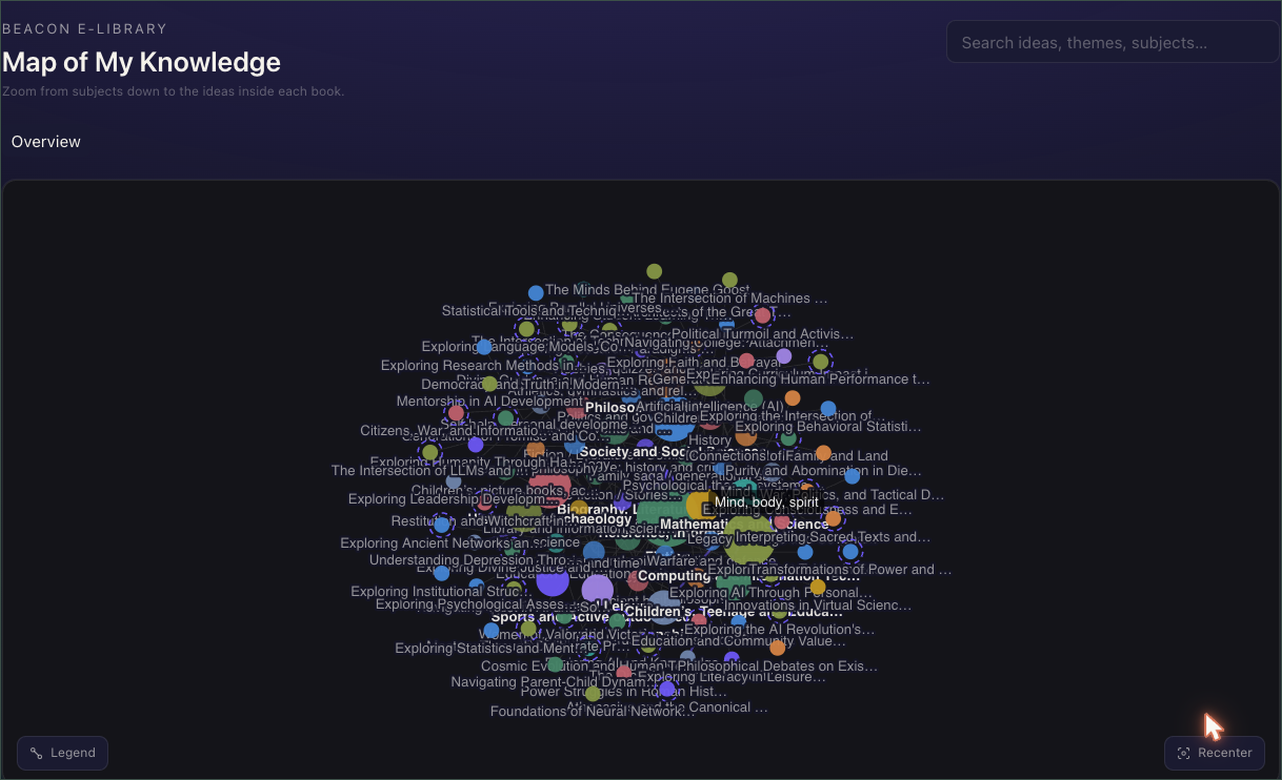
Map of My Knowledge shows your whole library as a living force-graph. Big dots are subjects; coloured dots are themes your books formed. Click a theme to zoom into its ideas, hover an idea to light up its connections, and drill overview → theme → book with the breadcrumb. A graph-wide search looks across your entire library by meaning (and tolerates typos); clicking an idea shows what your books actually say about it, with quotes you can open in the reader. Recenter refits the view at any time.
Quizzes, notebooks & reviews
The Quiz hub gathers every quiz set you have generated across all books; each session streams questions with instant feedback and explanations grounded in the book. The cross-book Notebook collects notes across your whole library and generates literature reviews that reason over many books at once — choose the scope (your whole library, one book, or several), pick a review type and style, then refine, export or follow the sources it drew from. And notebook items don’t stop at reviews — any of them can be sent straight into Book Studio as the raw material for a manuscript.
The community shelf
Browse books other members have shared and adopt any into your own library, where it is re-indexed into your private knowledge graph. Administrators approve books offered to the community and control the web-search scope.
4 · Book Studio
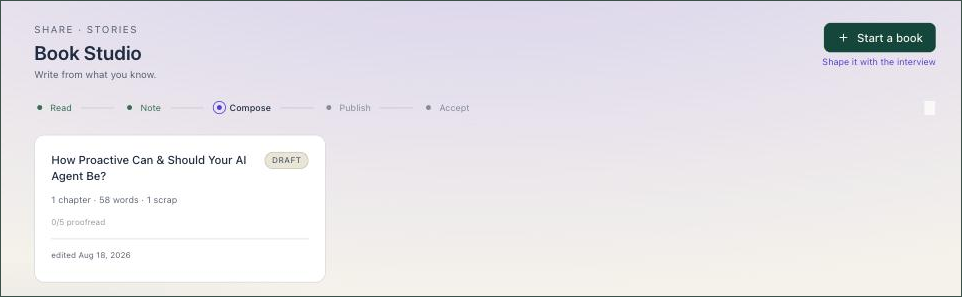
Book Studio is where the portal’s loop closes: the notes you gathered while reading become a book of your own — written, cited, compiled and published without leaving the portal.
Starting a book
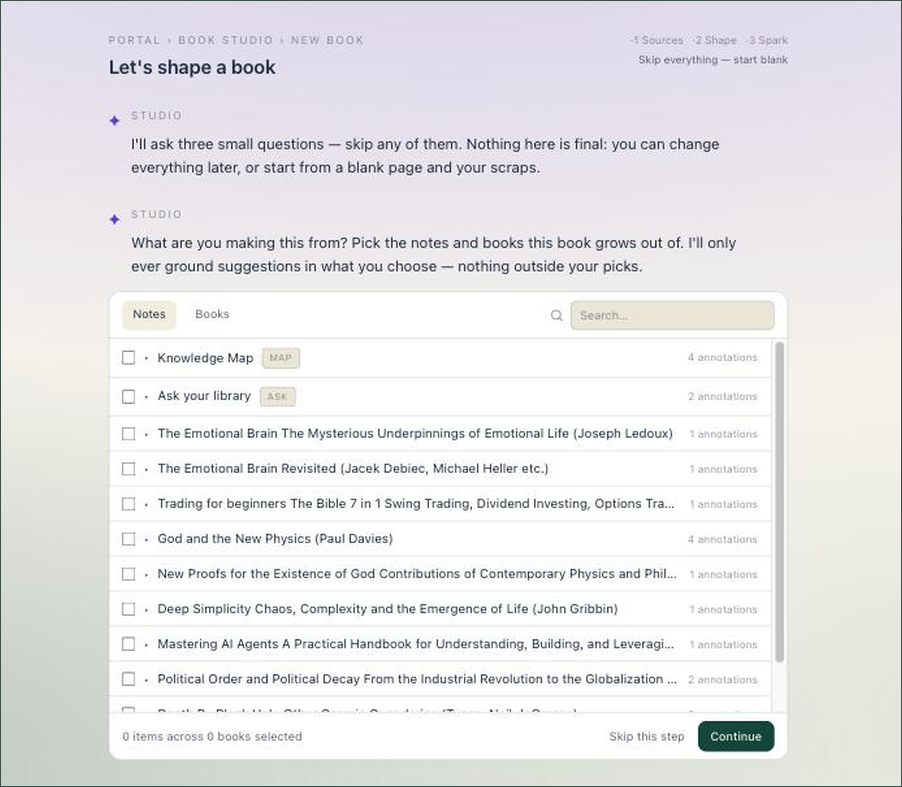
A new project opens with a short conversational interview, not a blank page. Pick the notebook collections, books or individual notes it should grow from, say what kind of book you are making, and — if you have one — state the spark. The portal proposes a chapter structure built from your own material, which you can start with, adjust, or skip entirely and begin blank. Nothing about the interview is binding; the outline stays yours to reshape at any time.
The writing canvas
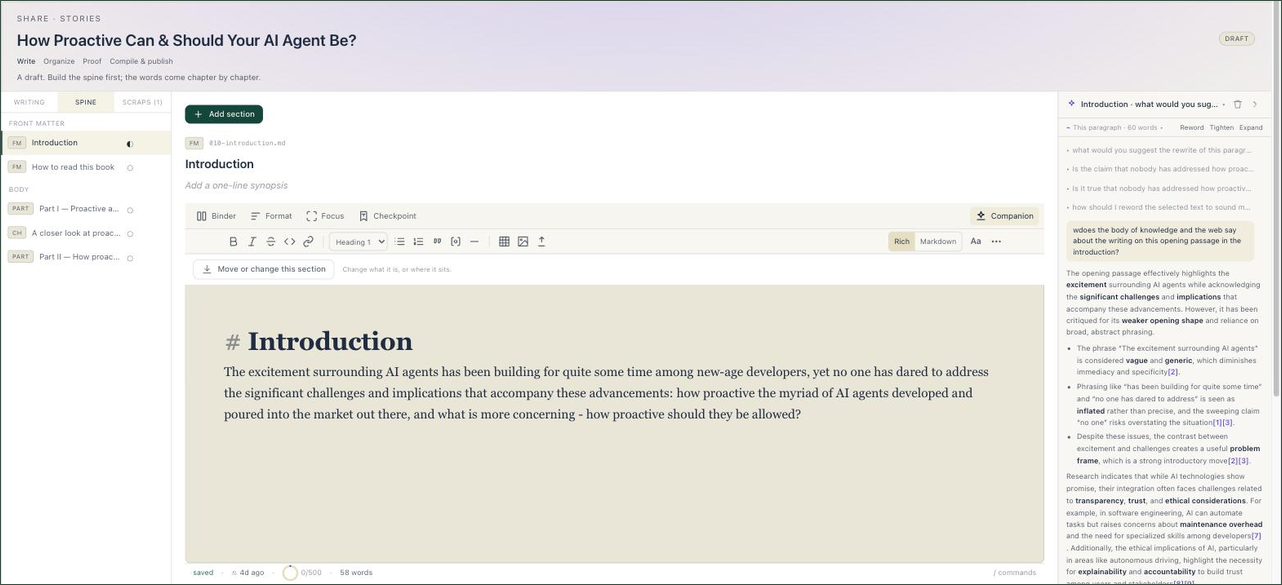
Writing happens in a deliberately calm canvas: a Rich view and a plain Markdown view over the same text, an opt-in format bar, and a focus mode that clears everything but the page. The studio autosaves as you type, keeps named checkpoints you can restore, tracks a daily writing goal, and finds (and replaces) across the whole book. A / command palette at the caret carries the deeper tools — citations, footnotes, structure, and prompts like counterpoint: what in my library disagrees with this?
The companion — an editor that only cites what you own
The AI companion from the reader sits beside the manuscript, scoped to the books you choose. Ask it questions, or ask it to rewrite a passage: rewrites come back as proposed replacements that keep your voice and your citations, and land in the manuscript only when you accept them. The companion is grounded-or-silent — if your sources cannot support a suggestion, it says so plainly rather than inventing one. Nothing auto-writes; the book stays yours.
Citations, proof & clearance
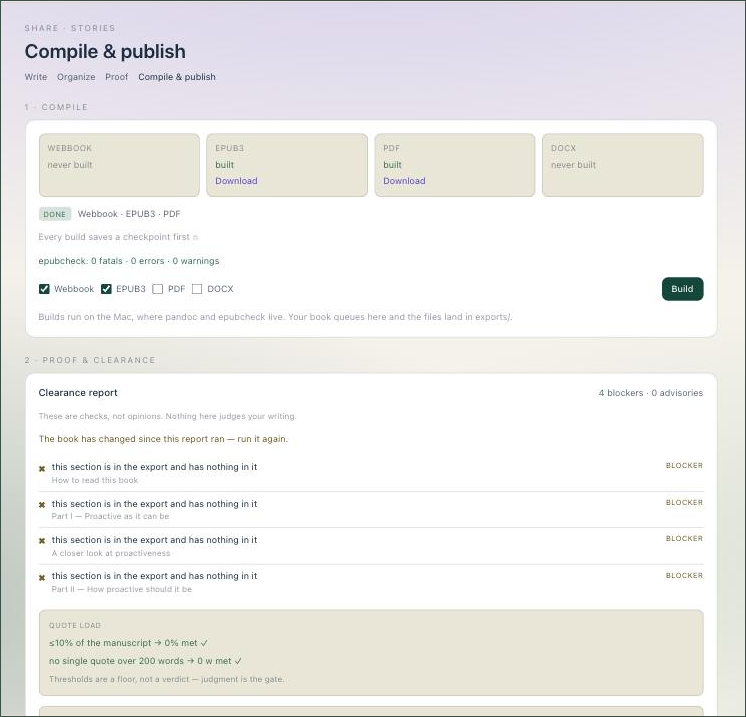
Citations carry page-level provenance back to the exact sources in your library, and render in your choice of the portal’s six scholarly styles (APA 7, MLA 9, Chicago, Harvard, IEEE, Vancouver). Before a book ships, the studio tracks proofreading coverage section by section, and a clearance check signs the book off only at full coverage — if a signed section changes afterwards, the clearance lapses honestly instead of staying green.
Compile, publish, share
One click compiles the manuscript to a web book, a validated EPUB, a print-ready PDF or DOCX — as background jobs with visible status, like everything else on the portal. A finished book publishes back to your own shelf, and once accepted into your library it is indexed like any other book: readable in the reader, quizzable, part of your Knowledge Map. Sharing it with the community shelf uses the same admin-reviewed flow as any shared book.
5 · The App Builder
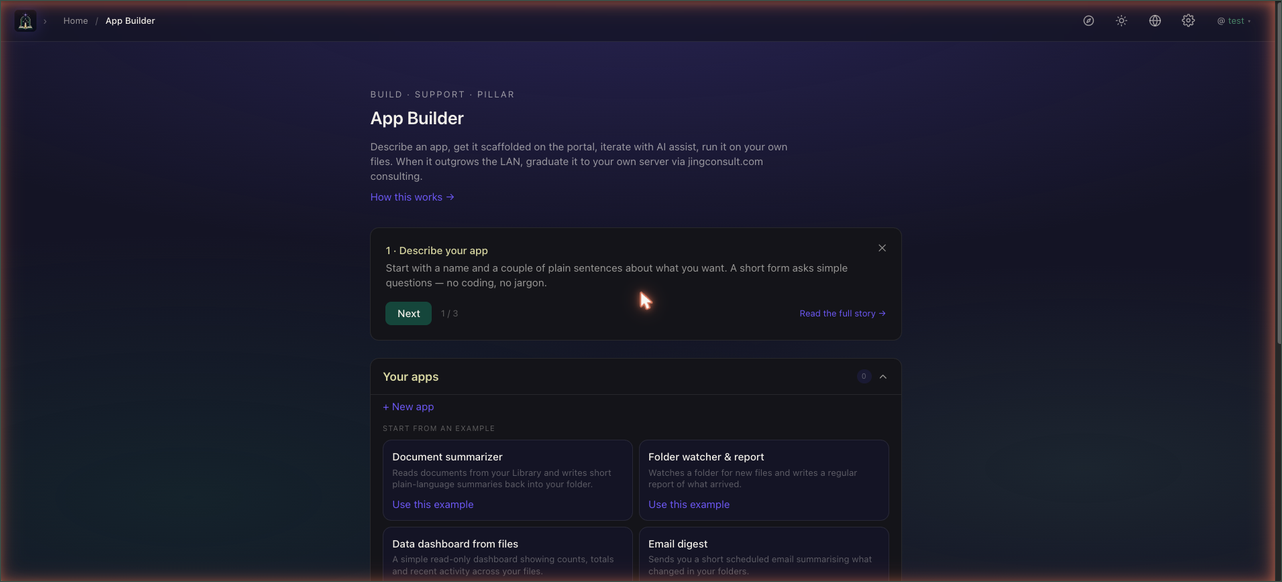
The App Builder turns knowledge into working tools. Describe an app in a couple of plain sentences and the portal scaffolds it and opens a build conversation with Brian, the AI builder. A template gallery lets you start from a ready-made example in one click; System apps (Invoices, CV Builder) and an approved Community catalog can be run on your own data with nothing to install.
Building an app
Each app moves through a clear lifecycle — described, planned, scaffolded, previewing, deployed — shown on its hub. You write a short brief (purpose and audience matter most), then build in the editor: describe each change to Brian, using Ask to review a step before it happens or Act to let it proceed, with the app’s files, change history, Agent Skills and a live preview one click away. A sandbox lets you try the app safely before deploying; Graduate exports a self-contained bundle that runs anywhere; and Settings holds deploy and sharing, secrets, model choice and a set-apart danger zone.
Agent Skills
Skills forged from your technical books live in the Agent Skills manager. Nominate a skill to an app to give it that expertise, or share it with the community. An admin console covers metrics, an audit log, the public-app and skills approval queues, and the AI budget.
Honest scope: shared and system apps run inside their own sandboxed frames and work on your own data. The portal tour can guide the surrounding chrome and the app frame, but an embedded app’s own internal buttons live inside that frame.
6 · CV Builder
CV Builder is a fully worked example of what an app on the portal can do. Build a baseline profile once — upload an existing CV or answer a short interview — then paste a job ad (or a link, or import from a job board) to start an application. The portal analyses the ad against your profile, helps you fill any gaps, and generates a tailored CV and cover letter you can edit, download or send.
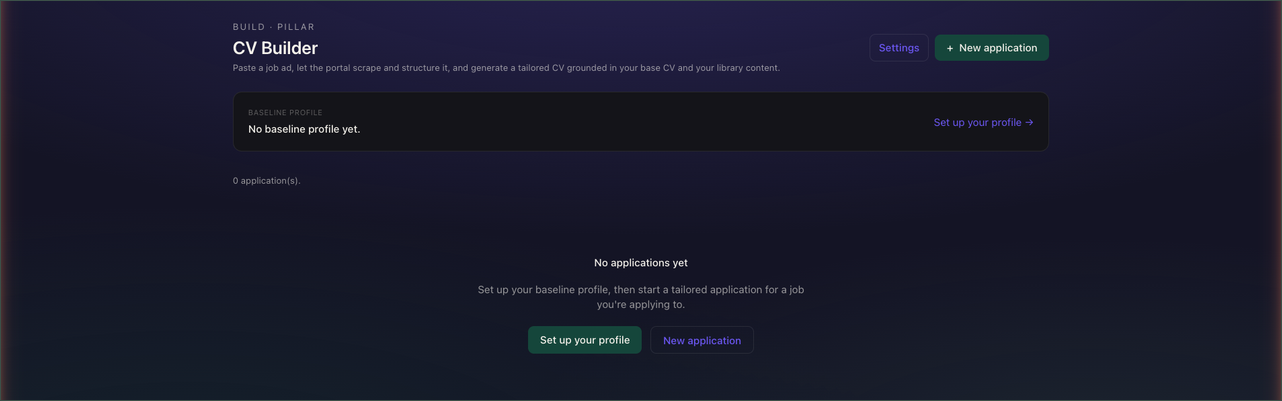
A privacy-first touch: the more capable cloud model is opt-in per ad and only ever sees the ad — never your CV or profile.
7 · Files, Trash, Settings & Invoices
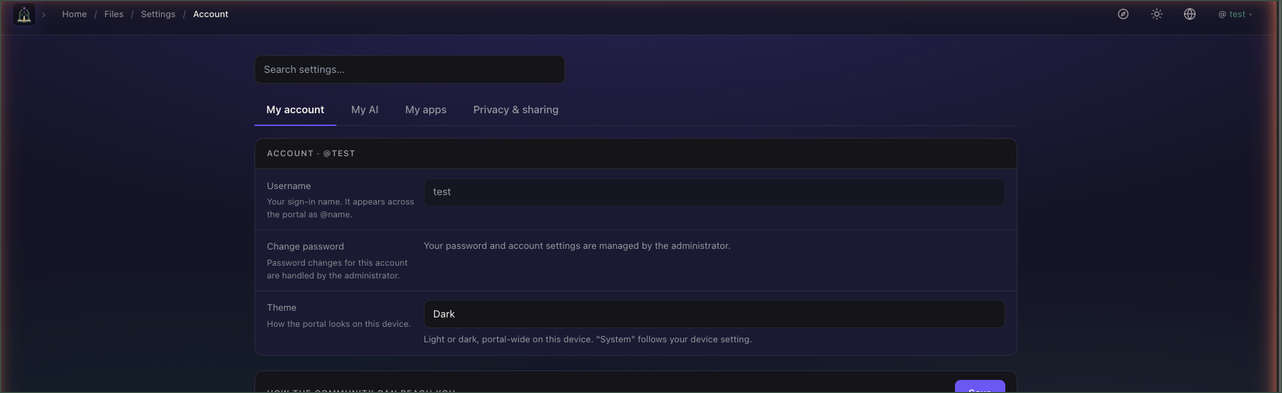
Underneath everything is your Files area — the storage layer the Library and every app are built on; you upload, organise and manage files there. Settings gathers your account, password, language and theme, storage, and each app’s own preferences into tabs. Trash holds deleted items so you can restore them before they are permanently removed. The Invoices app runs in its own window for creating and managing invoices, and the How-it-works page tells the whole knowledge-to-app story in one place.
8 · The Portal in your pocket — the mobile apps
The Portal’s native apps for iPhone and Android are live on the App Store and Google Play. They deliberately carry the pocket half of the portal: your Library and its page-view reader with the AI reading companion — ask questions grounded in the book you are holding, tap a citation to land on the cited page — plus your Notebook of highlights and saved answers, quizzes, and the Knowledge Map of your whole library. The interface speaks English, Español, 简体中文 and 日本語, and signs in with the same account as the web portal.
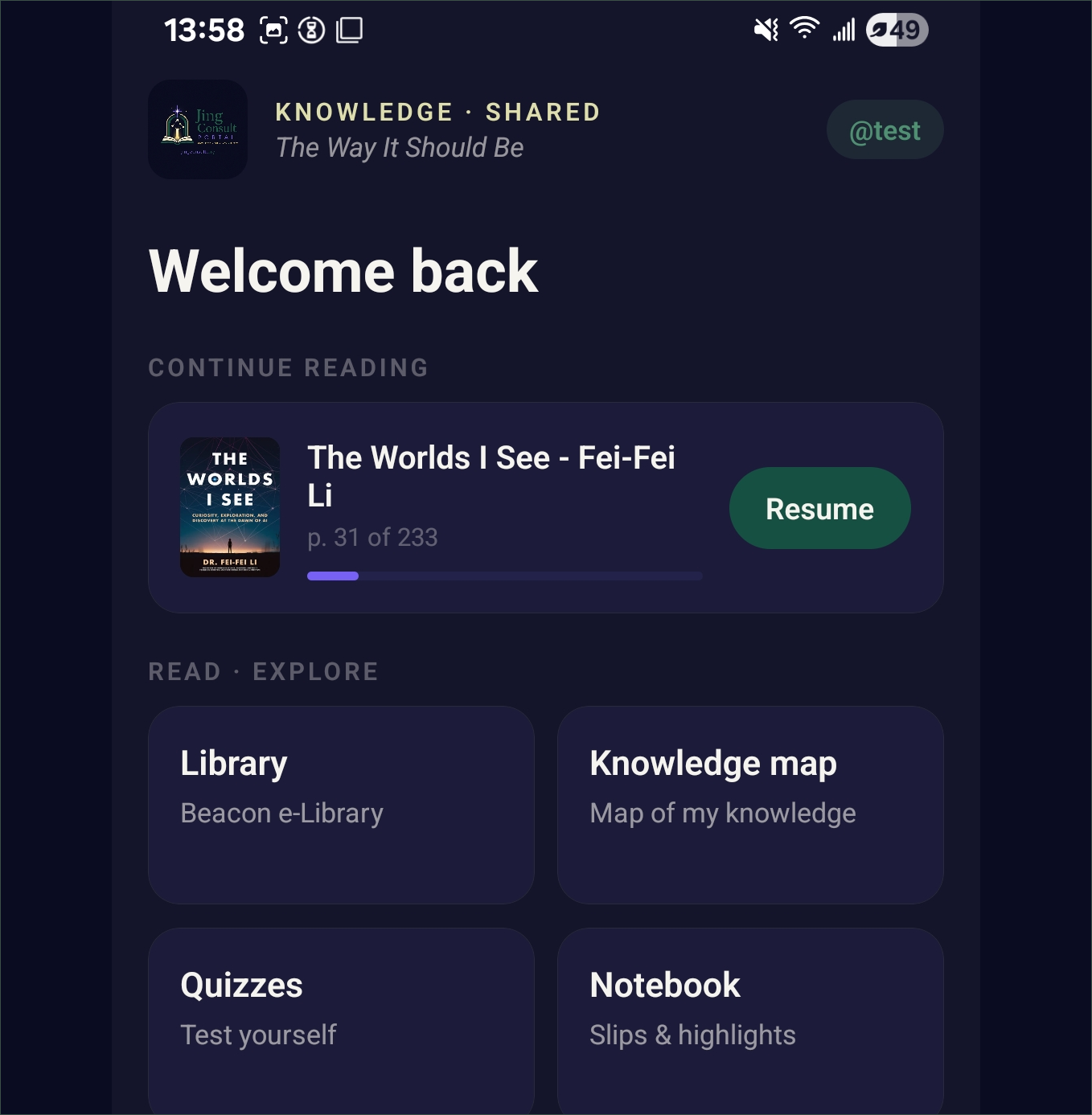
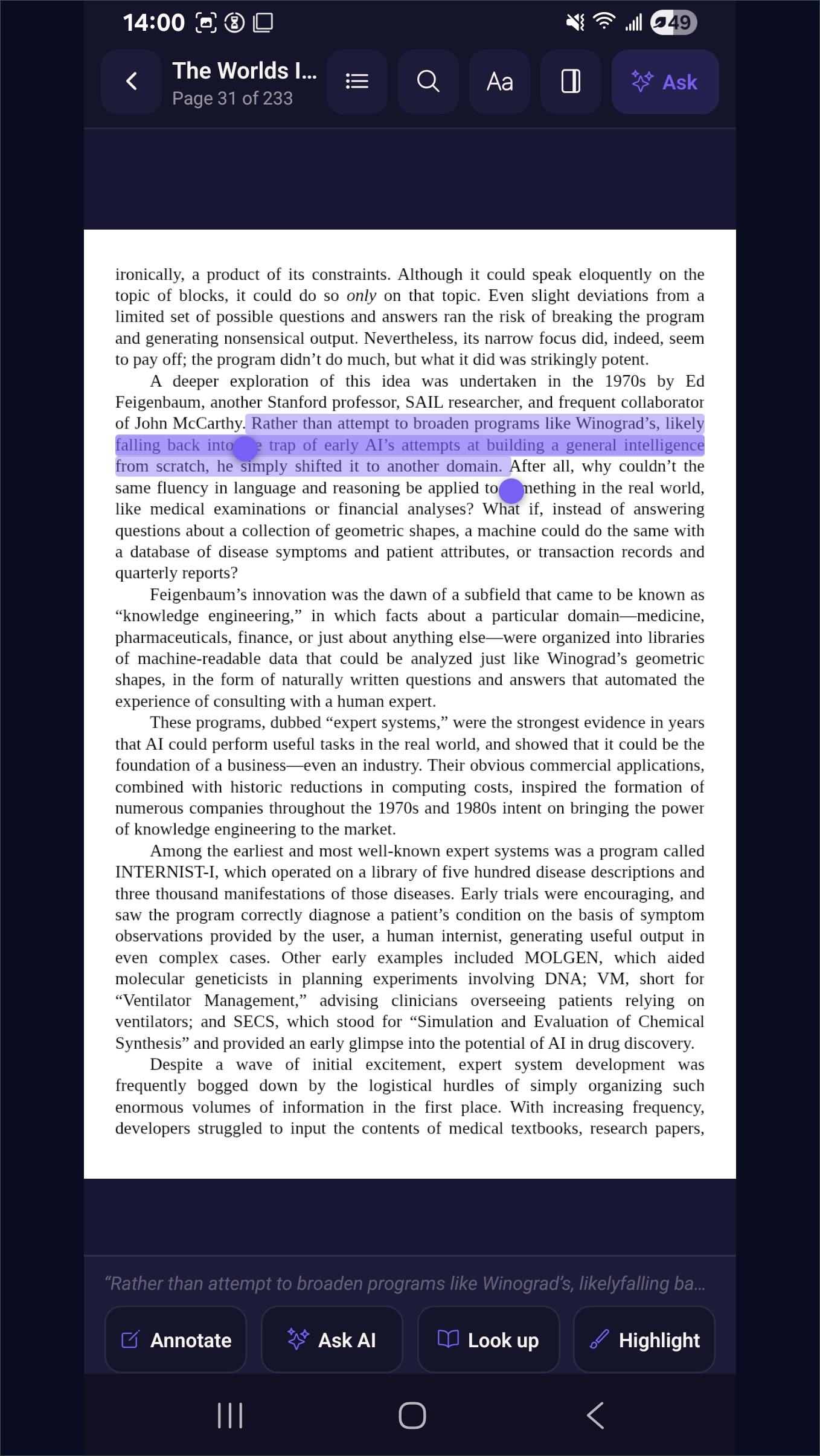
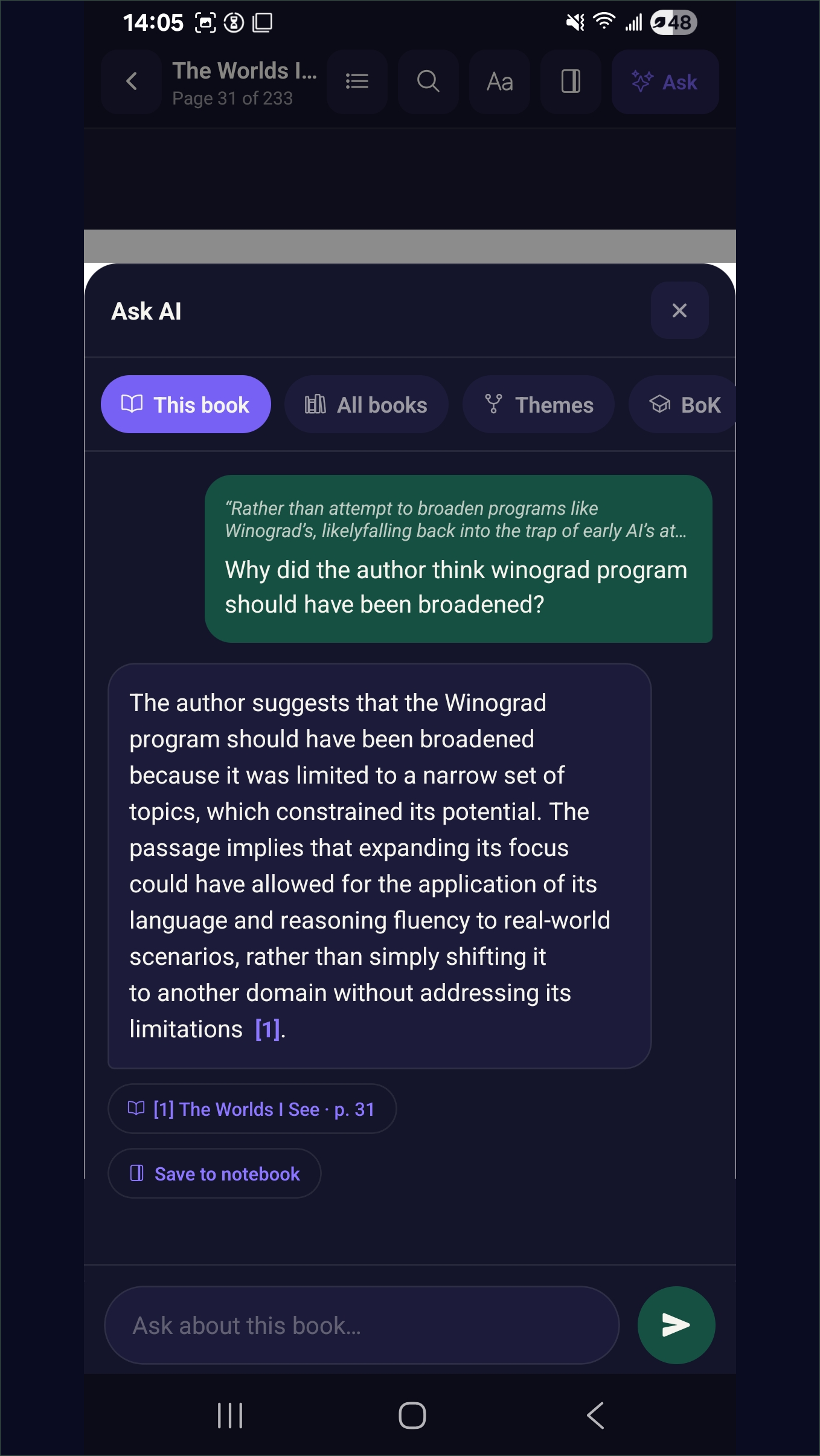



macOS 12 or later · Apple silicon and Intel · signed and notarised · updates itself
The workbench apps — Book Studio, the App Builder, CV Builder, Files and Invoices — are desktop-portal features at this stage, and the mobile apps are the convenient outlet to showcase the main Library utilities. On a Mac that desktop portal is also a native app, with the whole workbench in it. Accounts are allocated rather than self-serve: request one through the contact form, or from the app’s own screen, or you can request-an-account right here.
9 · Privacy & the data model
The portal is designed so the demonstration is trustworthy. Your files are the source of truth for your data; the knowledge graph built from them is private to you and no other member can see it; answers are grounded in your own sources and shown with citations you can open; and where a remote model is used (as in CV Builder) it is opt-in and tightly scoped. This privacy-by-design posture is the point of the demonstration — it is how Jing Consult builds for clients.
10 · Getting demo access
The Jing Consult Portal is a live demonstration. To try it yourself, request demo credentials through the contact form and we will set you up — the same login signs in to the web portal and the mobile apps. Request a portal demo →